Promotional products
Pens, mugs, bottles and bags on quotes: quantity breaks, branding by you or the supplier, and choices for the customer.
- Say what you sell In Settings, Shop details, under What you sell, choose Decorated apparel, Promotional products or Both. It sets the words, the lines new quotes start with, and which settings you see. Shops that only sell promotional products don't see sizes, dark garment or bigger size settings.
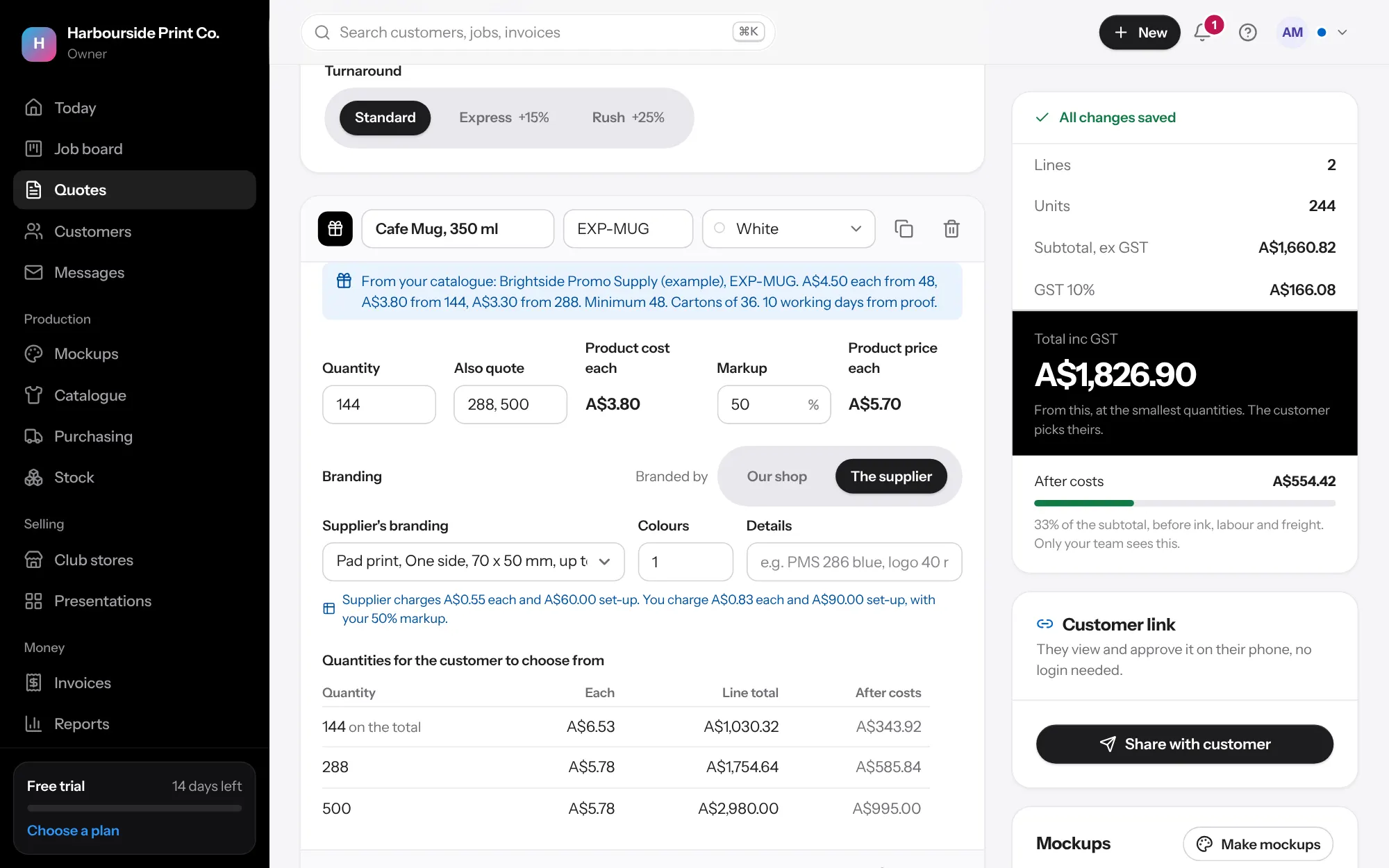
- Add a product to a quote Press Add a promotional product and start typing its name or code. Products from your catalogue bring their cost by quantity, colours, minimum order, carton size and the supplier's branding options. Type the quantity; the cost each follows the supplier's quantity breaks, and your markup on promotional products goes on top (your markup tables still apply when you have them).
- Who brands it Under Branded by, choose Our shop to price the branding from your own price lists (pad print, laser, UV print and others), or The supplier to use one of their branding options: their cost each and set-up, with your markup on both. Add how many colours and any details, like the PMS colour. How this is priced shows your costs; customers only ever see your prices.
- Let the customer choose how many Type other quantities in Also quote, like 500, 1000. Each one is priced the same way. The customer's link and PDF show a small table for the line and the total says from until they choose. When they approve, they pick one per line, and the quote is settled at that quantity and its quoted price.
- Minimums and dates A line under the supplier's minimum says so. Set In hands by on the quote when the customer needs it for an event: when the supplier's working days plus delivery would arrive after it, the quote and the job say so, with the date it would arrive.
- Order from the supplier Once approved, products the supplier brands show under With supplier on the job. Press Order from supplier, choose whether they send it to you or straight to the customer, and a branding order is made with the approved artwork, the branding details and how many. Bought by the carton? The order rounds up to full cartons and shows the spares. Send the supplier their link from the order.
- The supplier's proof and updates When the supplier sends their virtual proof, upload it in Proof and artwork and send it to the customer as usual. From their link the supplier says when they've accepted it, sent the proof, dispatched it (with tracking) and when it's delivered; the job shows each step. These products don't count against your daily capacity.