Production files, job sheets and work sent out
Mark the files the floor prints from, print job sheets, and send decoration to another shop.
- Mark the print files On the job, under Proof and artwork, press the layers button on a file and choose Mark as a print file: separations, a stitch file or a DTF sheet. Add where it goes and the ink or thread colours.
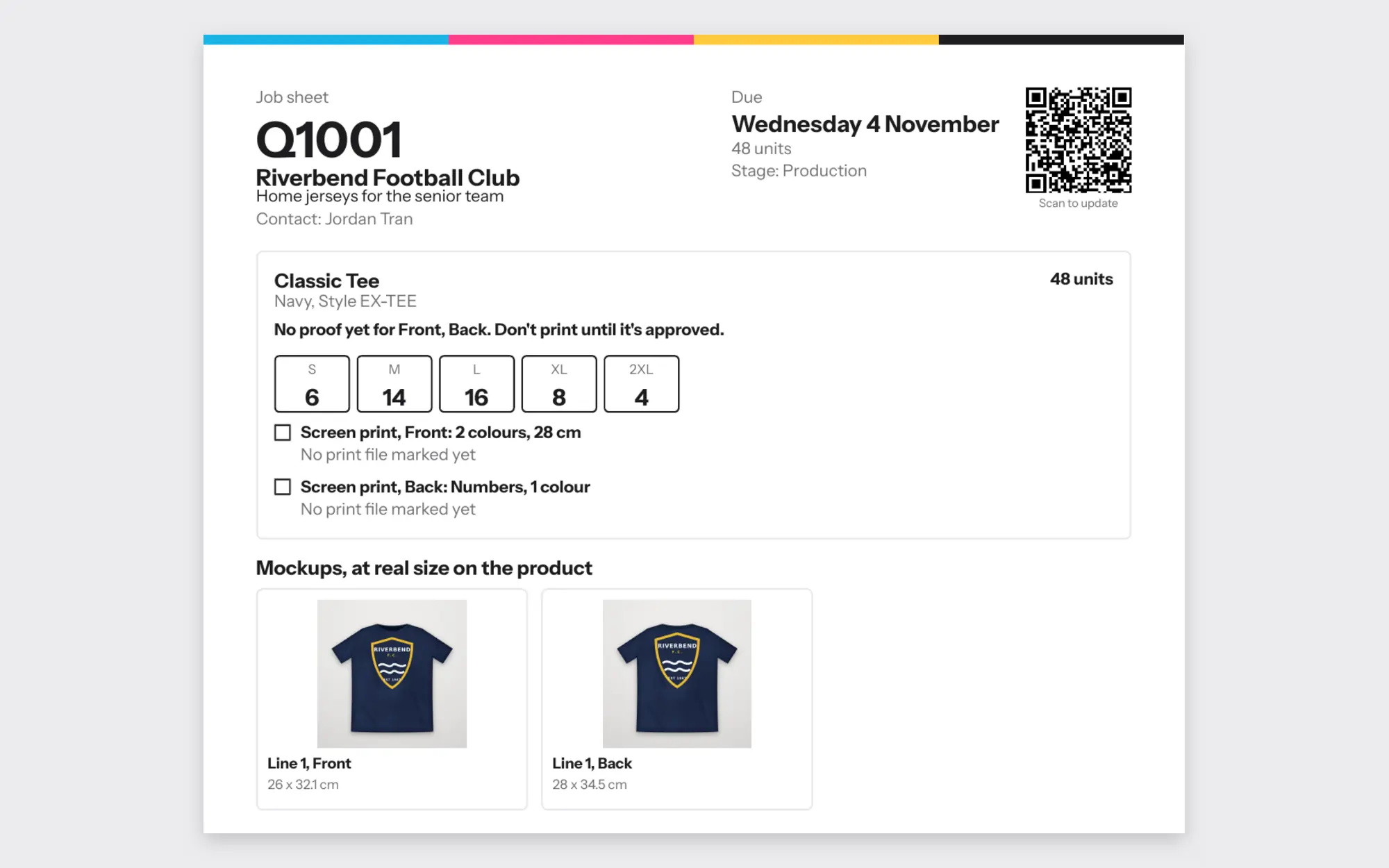
- Print the job sheet Press Print job sheet on the job. It lists each line's sizes, where it's printed and how big, the approved proof version, the print files, and names and numbers by size. It never shows prices.
- Don't print an old proof If a line changes after its proof was approved, the job sheet says it needs a new proof and not to print it. Replaced proofs are listed so nobody prints from them.
- Scan it on the floor Scan the sheet's QR code with any phone camera and sign in once. Tap to move the job to the next stage, start its timer or tick its quality check.
- Send work out For decoration another shop does, press Send work out under Work sent out. Type the shop doing it, tick the decorations and the files that go, and press Make the work order. Its PDF, email and link carry your instructions, the sizes and the approved proof, and they download the files from their link.
- When it comes back The job's ready check waits until the work is back, and its cost goes into the job's costs.