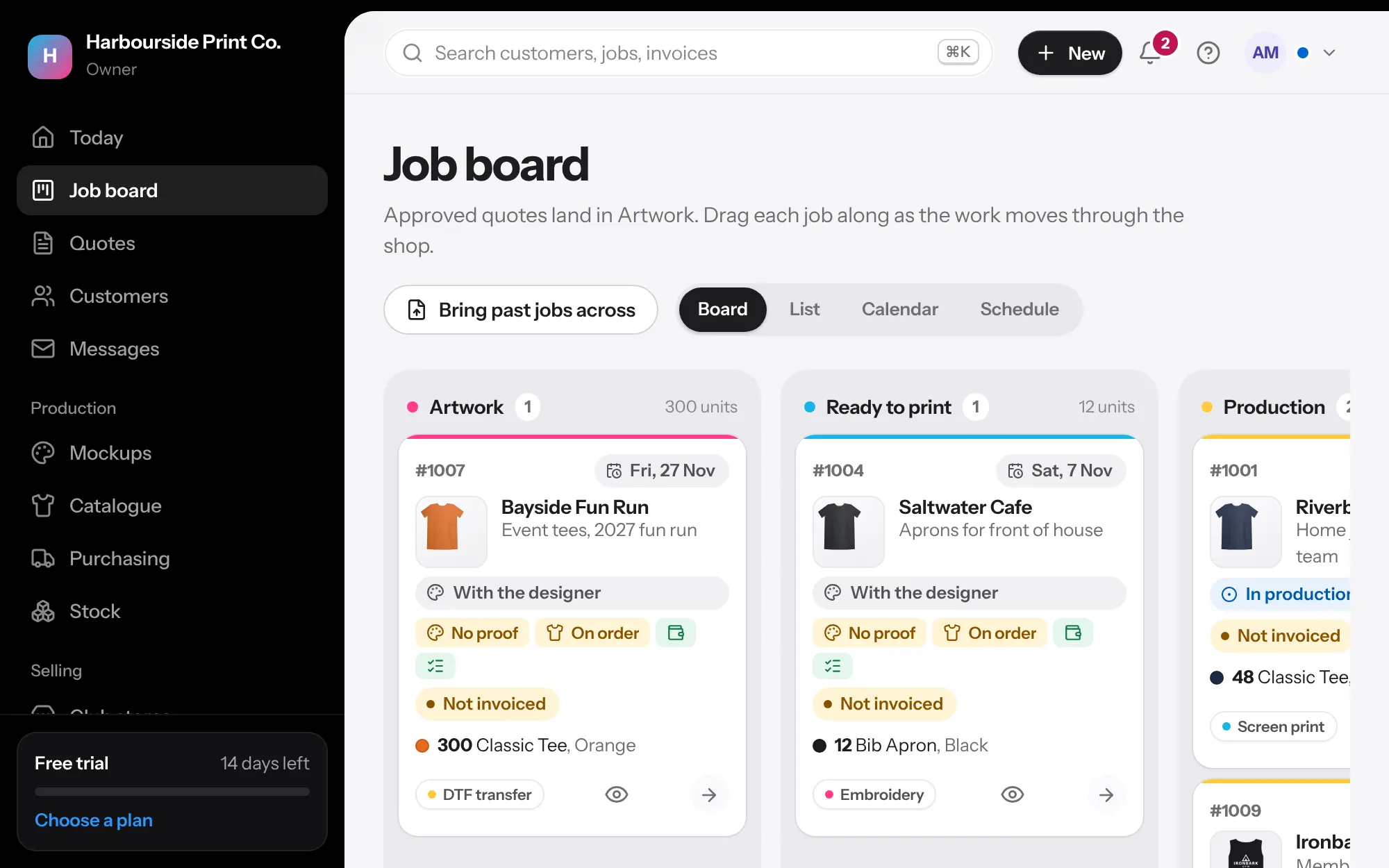
- Check a job is ready to print Before production, each card on the board has four small lights: artwork, blanks, payment and tasks. Green means done. When all four are green the card says Ready to print. Open the job to see what's still missing.
- See where it's up to Once a job is in production, its card shows the stage instead (In production, Finishing, Ready to go, Sent, Done, or your own stage names) and anything still open, like work out with another shop, tasks left, or not paid. The job page, list and quick look show the same.
- Hear about it straight away The bell at the top shows what's new: quotes approved or changes asked for, proofs, jobs given to you, payments, customer replies and new orders. A short note pops up as it happens, without refreshing. Each person gets the ones for their jobs and role. Open the bell to mark them read, or see them all.
- Scan job sheets Print a job sheet from the job. Scan its QR code with a phone camera, sign in once, and tap to move the job to the next stage.
- Put it on your home screen On an iPhone, open the app in Safari, tap Share, then Add to Home Screen. On Android, open it in Chrome, tap the menu, then Add to home screen or Install app. On a computer, Chrome and Edge show an install button in the address bar. It then opens in its own window, like any other app.
- Track time Press Start timer on a job, or on the phone page after scanning its sheet, and Stop when you're done. Forgot? Type it in, like 1:30. Set an hourly labour rate in Settings, Shop details to see what the time cost. Reports add it up by person.
- Talk on the job Write in Team comments on any job. Type @ and choose someone, and it shows on their Today until they open the job.
- Tag and save views Add tags like Rush on a quote or job. Filter by a tag on the list, then press Save this view to keep that filter.
- Set your capacity In Settings, Job board, enter how many garments you can do in a day. Busy days turn red on the calendar and schedule.