How to make a mockup
One for every line and print location, on the product's own photo at real size.
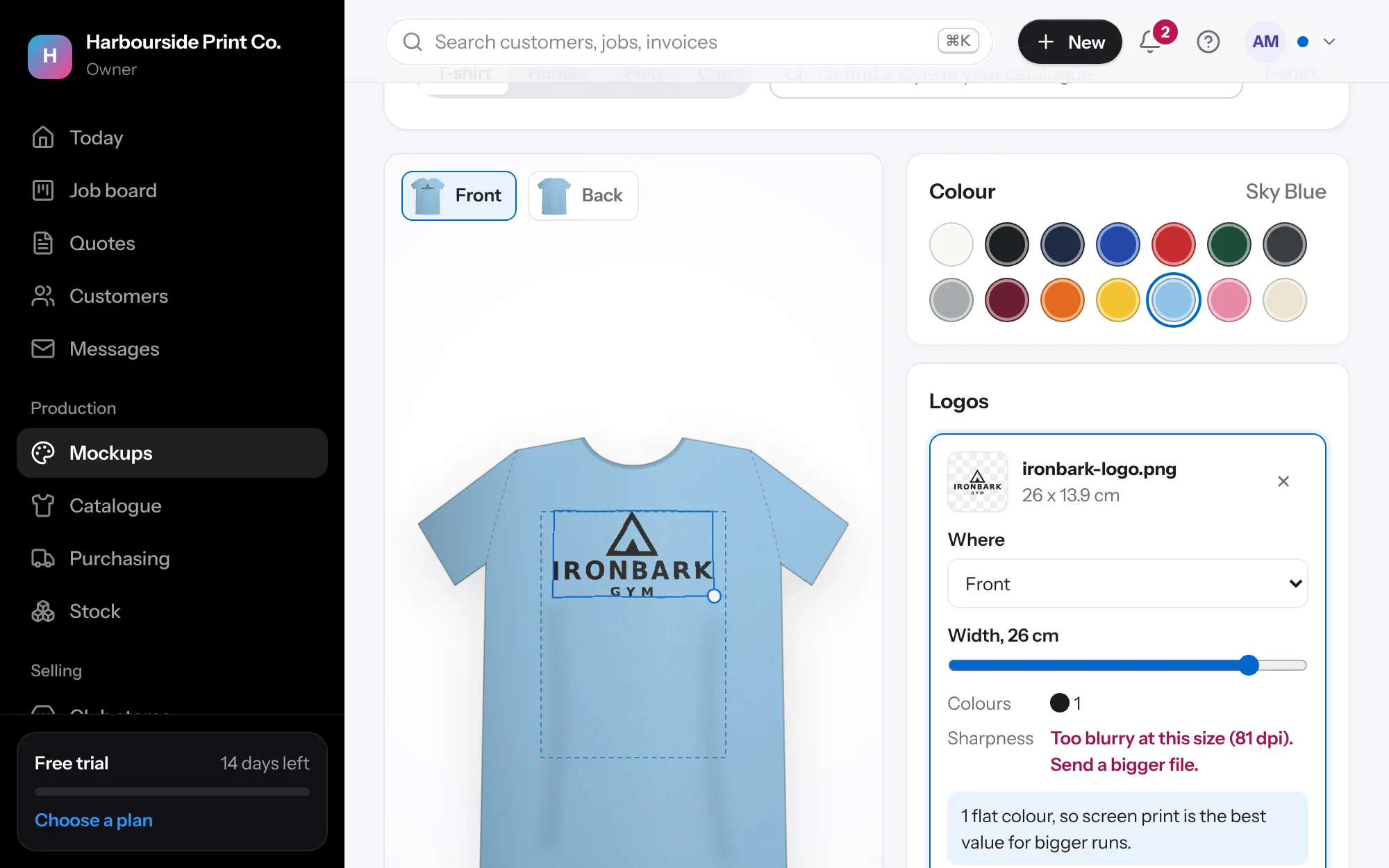
- Have the photo and the logo ready Mockups use the product photos in your catalogue: supplier photos from a price list, or ones you add on the product. You never upload a garment photo for a mockup. Add the customer's logo to the job's artwork (PNG, JPG, SVG or a PDF).
- Make them all at once On the quote or job, press Mockups, then Make mockups. Each line gets one mockup for each print location, on the photo for that colour: the front photo for front prints, the back photo for back prints. With several artwork files, pick which one to use first. A file marked for a location (like Left chest) is used there.
- Adjust by hand Press Adjust on any mockup. Drag the logo to move it, pull a corner to size it, and use the round handle to turn it. It snaps to the centre of the print area, and the size shows in centimetres as you go, like 28.0 x 19.5 cm. You can also type the width or height. Arrow keys move it, plus and minus size it. Press Save mockup.
- Choose how it looks Ink set to Auto blends the logo into light fabric so the folds show through, and lays it on top of dark fabric. Change it to Light fabric or Dark fabric, choose the ink strength, and how much fabric texture shows.
- No photo, or not in that colour If there's no photo in the colour ordered, the product's any-colour photo is used and the mockup says so. If the product has no photo at all, the mockup says No photo for this product yet, with a link to the product to add one.
- Use them Mockups are saved to the job as proof files, so you can send one as a proof. They show on the quote, the customer's quote page and the job sheet. Make them again after the quote changes and each one is updated, not doubled up. A mockup already sent as a proof is kept as it was.
- Check a product's real size Open the product in the catalogue and go to Mockup size. Most products are right as they are. To check one, drag the pink ends to something you know the size of, like the chest of a size M tee (about 50 cm), type its length and press Set the size. Drag or resize the print areas if they're not where you print. Garments, caps, bags, bottles, mugs, pens and notebooks each start with their usual sizes.