Moving from other software
Bring everything across from Hoops, Printavo, DecoNetwork, YoPrint or a spreadsheet.
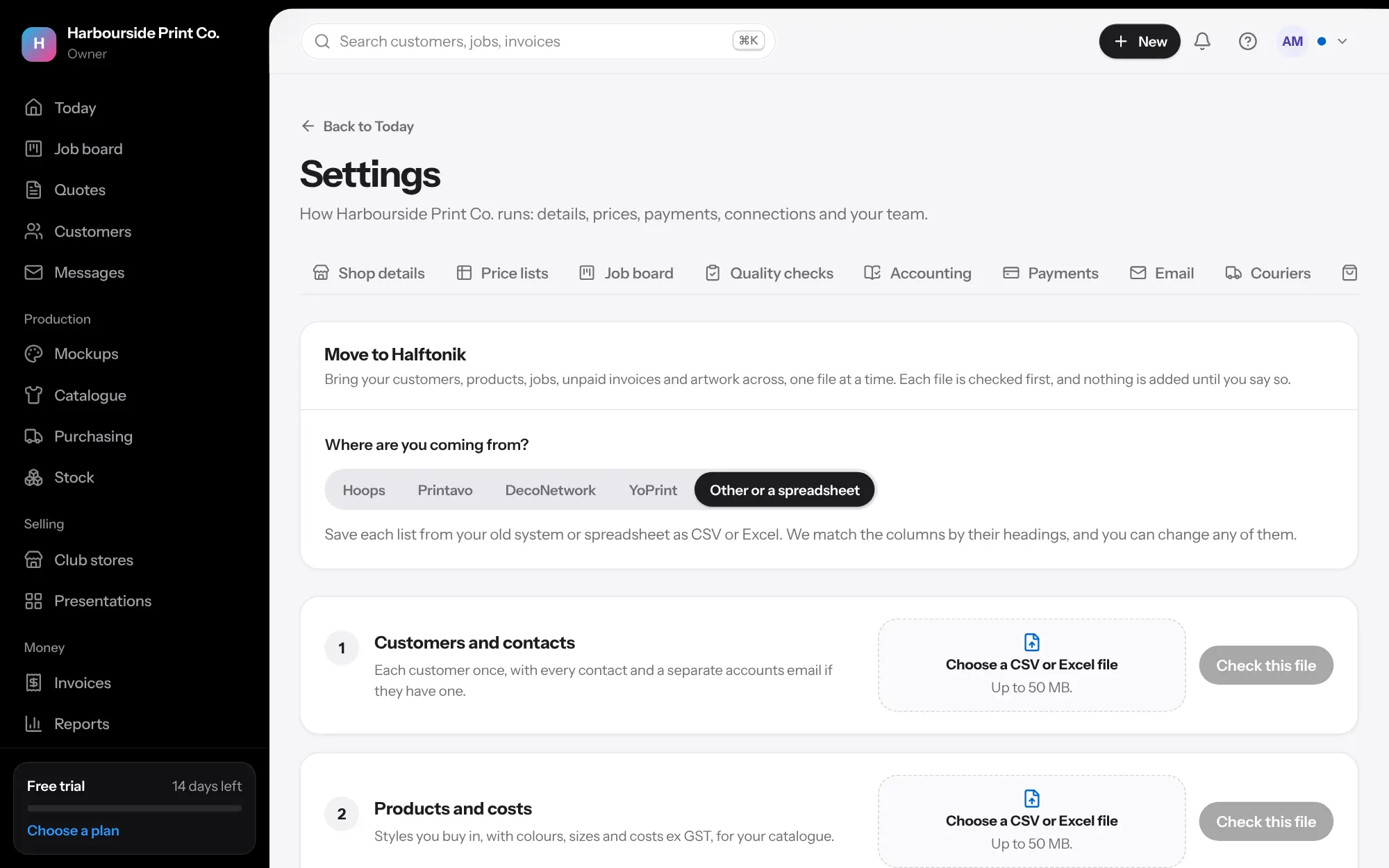
- Start in Settings, Import Choose where you're coming from, then load each list in turn: customers and contacts, products and costs, past jobs, open quotes and jobs in progress, unpaid invoices, then a zip of artwork. CSV and Excel files up to 50 MB.
- Check the columns We fill in which column holds what from that system's column names, or from the headings in a spreadsheet. Change any of them, or choose Not in this file.
- A dry run first Press Check the file to see how many will be added, updated, left out or can't be added, with each problem row in plain words. Nothing is added until you press Add.
- Customers already here A customer with the same email, ABN, or name and phone is shown as maybe already here. Choose Merge to fill in what yours is missing and add new contacts, or Add as new. Merge never changes what's there.
- Load it again safely Each record keeps its number from your old system. Loading the same file again adds nothing twice, so you can load a newer export while you're still using both.
- The check After each load you see the file's totals against what's here: customers, open jobs, invoice totals and balances owing, with anything that differs listed. Press Download the check to keep it.
- Jobs stay quiet until you go live Jobs and quotes brought across send no customer emails or texts, make no supplier orders, run no automations and send nothing to accounting. When you're ready, press Go live on the job, or tick them on the Import page and press Go live with these jobs.
- Unpaid invoices Invoices still owing come across as opening balances with their own numbers and what's been paid. They show on statements and reports, but they're never emailed, reminded or sent to accounting unless you allow it on the Import page.
- Artwork Zip your artwork in folders named by job number (like 1042/logo.ai), or with the job number at the start of each file name. Each file goes on its job.
- Undo a load Open a load and press Undo this load. It takes out what that load added and puts back what it changed. Invoices it brought across are voided, as tax invoices are always kept. Anything someone has changed or used since, like a job that's gone live or an invoice with a payment, is kept and listed.
- Take everything with you Press Download everything on the Import page for a zip of spreadsheets: customers, contacts, products, jobs and their lines, invoices, payments and a list of files. It works even after your plan ends.